 Admissions
  Financial Aid
 Academic Divisions
 Academic Support Resources
 Learning Commons
 Academic Calendar
 Program Search
 Course Search / Information
 Online Learning
 English Language Learners
 Municipal Police Academy
 Beyond Associate Degrees
 Cooperative Education & Internships
 Academic Advising
 Act 101 Program
 CARE Team
 KEYS
KEYS New Students
 Parenting Students Resources
 Transfer and Articulation
 Student Employment Services
 Student Records
 Student Resource Center
 Athletics
 Campus Life
 Commencement
 New Student Orientation (NSO)
 Online Classes
 Professional Development
 Community Education
 Training & Certification
 Alumni and Giving
 New Students
 Prospective Students
 Parents & Family
 Veteran and Military Services
How to configure your Two-Step Login devices and add new one go to the Two-Step Login Device Management Portal, either:
- From the delaGATE Account management webpage (link opens the web app), click the Duo Security section, OR
- Go to https://dccc.login.duosecurity.com/devices, OR
- During a Duo authentication request, click Other Options in the prompt, then click Manage Devices at the bottom of the list of your currently enrolled devices.
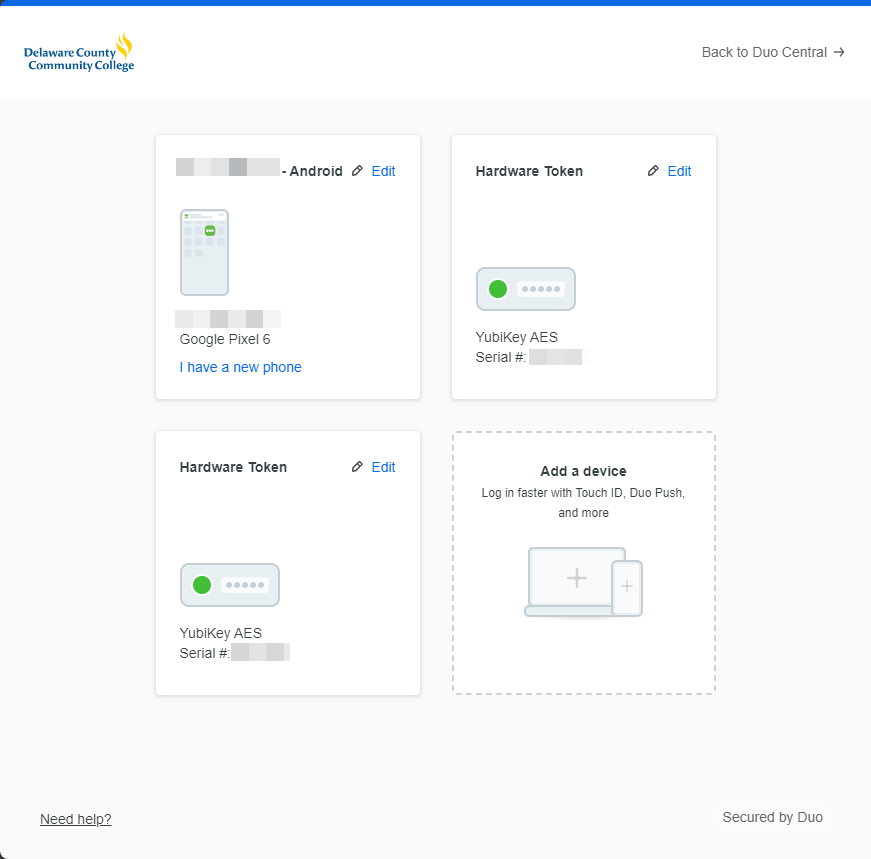
After you authenticate with Two-Step Login, the Device Management Portal will open. The portal page shows a panel for each of the devices you have enrolled in Two-Step Login.
- In the panel for a device you have already added, click Edit to change settings. (Phones can be renamed or deleted, Hardware Tokens can only be deleted)
- If you have gotten a new phone and need to update Duo’s settings to reflect that, in the panel for an existing phone device, click I have a new phone and follow the prompts.
- To set up a new device for use with Duo, click Add a device.